VS Code Azure CLI Tools: 'az' Not Found on PATH
On this page
I open a .azcli file in VS Code and get this notification:
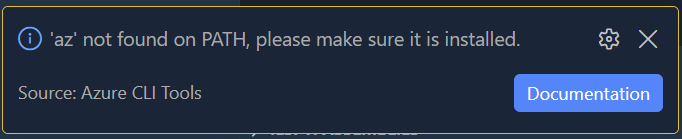
Confusing, because az --version works fine in the VS Code integrated terminal and in Windows Terminal. So Azure CLI is clearly installed and on PATH. It’s just this one extension that can’t see it.
Why it happens
VS Code reads its environment, PATH included, once, when it launches. If Azure CLI was installed or its PATH entry changed after that VS Code process started, VS Code keeps using the old PATH until it’s restarted.
A brand new terminal window doesn’t have this problem because it’s a fresh process. It reads the current PATH from scratch the moment it spawns, so it sees the update straight away even while the older VS Code window is still running on stale values.
The fix
- Fully quit VS Code, all windows, not just Reload Window, then reopen it.
- If that doesn’t clear it, quit VS Code and reopen it from a terminal where
az --versionalready works, e.g. typecode .from that terminal. - Still stale? Sign out and back in, or reboot. This clears Explorer’s cached environment, which is what VS Code inherits when you launch it from the Start Menu or taskbar.
If you’re on VS Code 1.92 or later and none of that clears it, there’s a known extension bug where Azure CLI Tools misreads PATH even when it’s correct. Check for an extension update before going further down the troubleshooting rabbit hole.
If it’s not VS Code
Seeing “az is not recognized” in a plain terminal, not just this extension, is a different problem: the shell genuinely can’t find az.cmd. A few other things worth checking:
Confirm the install actually completed. The default location is C:\Program Files\Microsoft SDKs\Azure\CLI2\wbin. If az.cmd isn’t there, the installer didn’t finish, rerun it.
Add it to PATH manually if the folder exists but PATH wasn’t updated:
[Environment]::SetEnvironmentVariable(
    "Path",
    [Environment]::GetEnvironmentVariable("Path", "Machine") + ";C:\Program Files\Microsoft SDKs\Azure\CLI2\wbin",
    "Machine"
)
Needs an admin PowerShell session, and you’ll still need a new terminal afterwards for it to take effect.
Try winget or Chocolatey instead of the MSI if you’re reinstalling anyway. Both tend to handle the PATH step more reliably than the standalone installer:
winget install --exact --id Microsoft.AzureCLIInstalled via pip? The az command lives in Python’s Scripts folder, not the Microsoft SDK path. If you’ve got more than one Python version installed, check PATH is pointing at the right one’s Scripts directory.
Using WSL? Running az from a WSL terminal looks for the Linux binary, not the Windows .cmd file. Install Azure CLI separately inside WSL, or call the Windows binary explicitly, they don’t share a PATH.
Check for a shadowing alias or function, particularly if you’ve got a heavily customised PowerShell profile:
Get-Alias -Name az -ErrorAction SilentlyContinue
Get-Command az -ErrorAction SilentlyContinue
If none of that shifts it, a clean reinstall (uninstall, delete the CLI2 folder, delete %USERPROFILE%\.azure, reboot, reinstall) resolves basically everything else.