Changing a Volume Name in Lightroom
I recently added a second Synology NAS to my network and wanted both servers accessible from Lightroom for easy drag-and-drop backups. The problem was both servers had a shared folder called Photos. To tell them apart I renamed one to Photos_ServerName — and Lightroom immediately lost track of everything stored there.
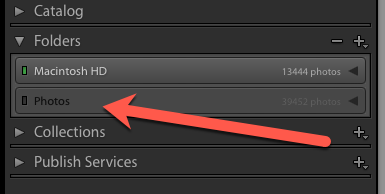
Any folder Lightroom can no longer locate shows up with a question mark icon. The photos are still there — Lightroom just doesn’t know where to find them.
Relinking the missing folders
Right-click any folder showing the question mark and choose Find Missing Folder. Navigate to the renamed location and select it. Lightroom will relink that folder and any subfolders it contains in one go.
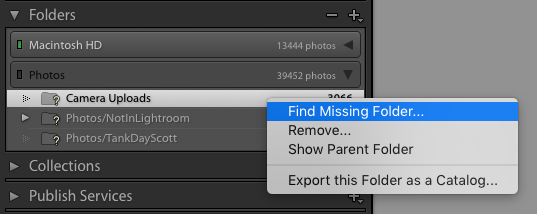
If you have folders that no longer exist at all — old paths you don’t need — you can remove them from the panel while you’re here to keep things tidy.
The result
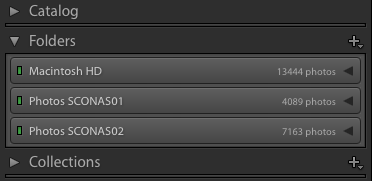
Once all the missing folders are relinked, the question marks are gone and everything is back to normal.
Worth keeping in mind: any time you rename or move a folder that Lightroom is watching, you’ll need to do this relink step. The safer approach is to rename the folder from within Lightroom’s Folders panel — that way Lightroom updates its own records at the same time and the question marks never appear.