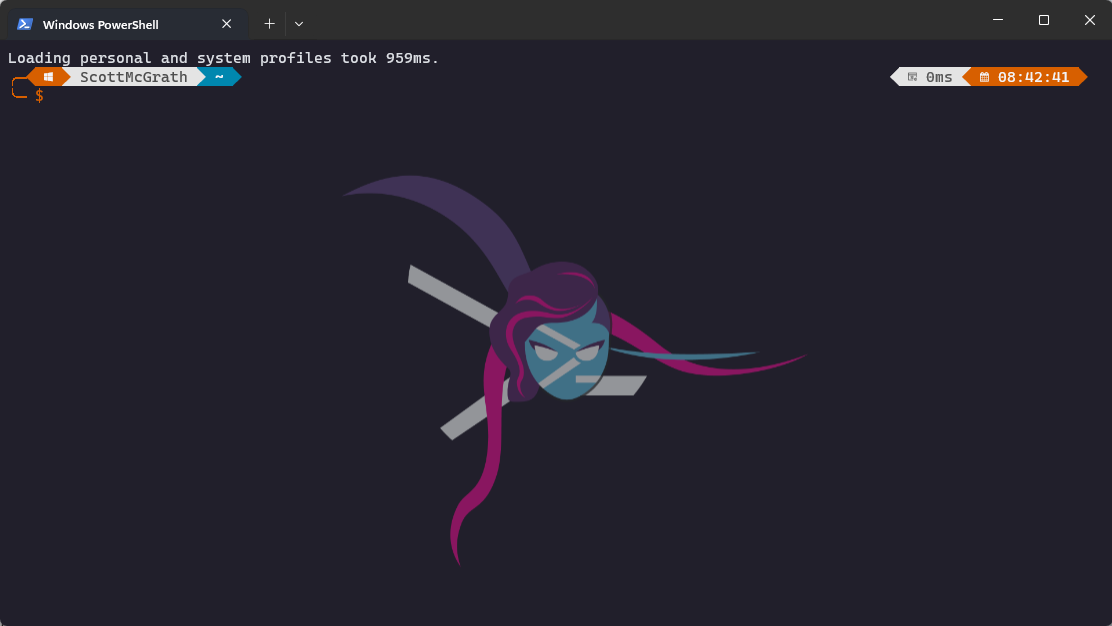
Customising Windows Terminal
Windows Terminal has come a long way since Microsoft released it in 2019. Out of the box it’s perfectly functional, but a few tweaks make it a much nicer place to spend time. Here’s how I’ve set mine up using PowerShell 7 and Terminal 1.17.
Acrylic material in the tab row
Head to Settings → Appearance and enable Use Acrylic material in tab row. This gives the title bar a frosted glass transparency effect.

Before:

After:

Colour schemes
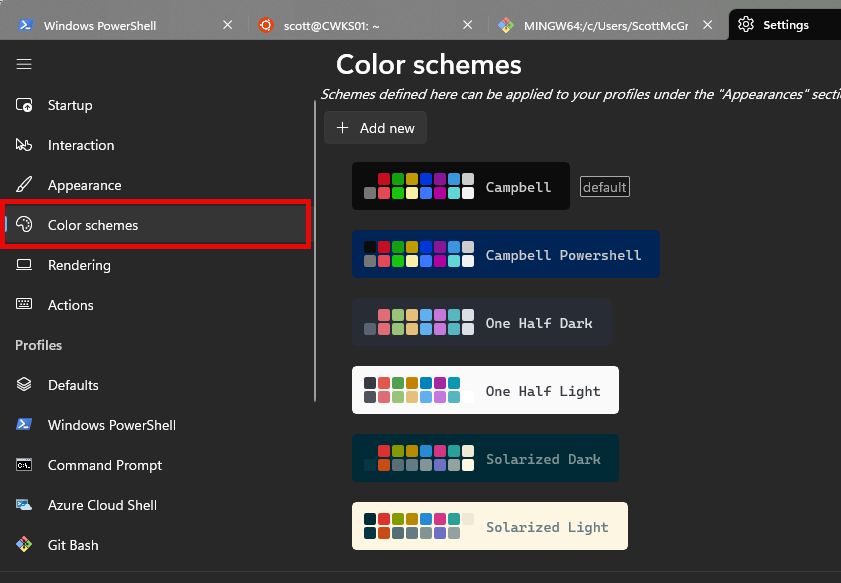
Go to Settings → Color Schemes to see and edit the built-in schemes.
For a much wider selection, windowsterminalthemes.dev lets you browse and preview hundreds of community themes.
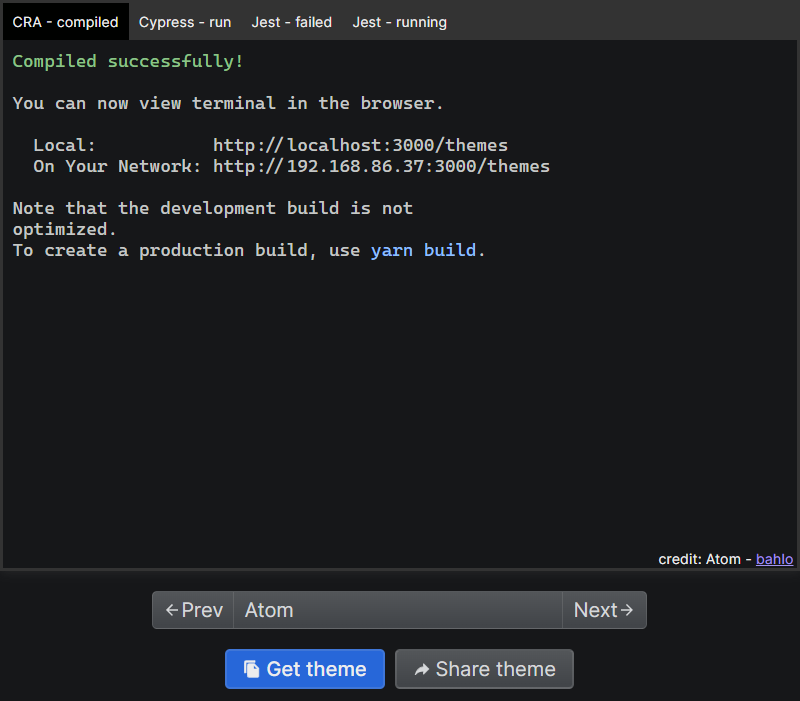
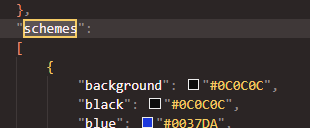
When you find one you like, click Get Theme to copy the JSON. Then in Terminal go to Settings → Open JSON file and find the schemes array. Paste the new scheme object in before the closing bracket.
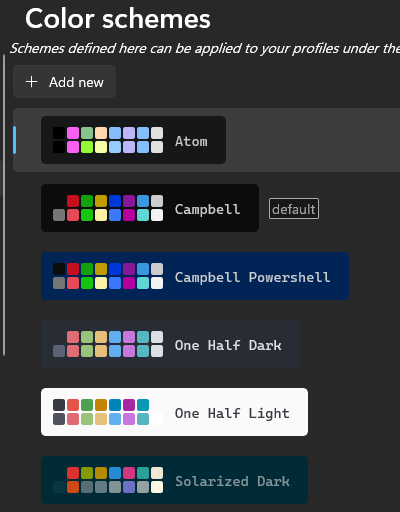
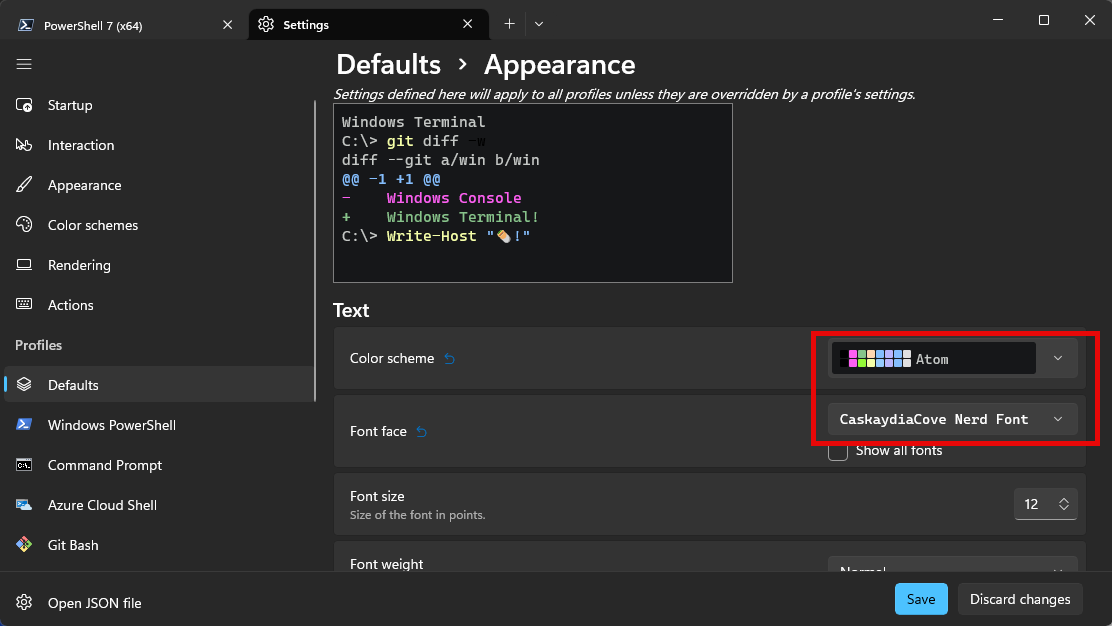
Back in Settings, go to Defaults → Appearance and select your new scheme as the global colour scheme.

Nerd Fonts
Nerd Fonts are patched fonts that include a large set of icons — essential if you want Oh My Posh prompts to render correctly. I use CaskaydiaCove Nerd Font.
Download and install the font file, then restart Terminal to reset the icon cache. Apply it via Settings → Defaults → Appearance → Font face.
Oh My Posh
Oh My Posh is a prompt engine that brings highly configurable, icon-rich prompts to PowerShell (and other shells). Install it with Winget:
winget install JanDeDobbeleer.OhMyPosh -s wingetTest it with the default theme:
oh-my-posh init pwsh --config "$env:POSH_THEMES_PATH\jandedobbeleer.omp.json" | Invoke-ExpressionBrowse all available themes:
Get-PoshThemesWhen you’ve chosen one, apply it the same way — replacing the theme filename:
oh-my-posh init pwsh --config "$env:POSH_THEMES_PATH\quick-term.omp.json" | Invoke-ExpressionMaking it persistent
The command above only applies for the current session. To make it permanent, add it to your PowerShell profile. Create the profile file if it doesn’t already exist:
New-Item -Path $PROFILE -Type File -ForceOpen $PROFILE in your editor, add the oh-my-posh init line, save, then reload:
. $PROFILEYour prompt will now apply the theme every time Terminal opens.
Background image
For individual profiles, go to Settings → Profiles → [Profile Name] → Appearance. You can set a background image and control its opacity — I have mine at 50% which keeps it visible without distracting from the text.