This Page Has Been Blocked by Microsoft Edge
If Microsoft Edge is showing a blocking notification on pages that should be accessible, Tracking Prevention being set too aggressively is the most common cause.
.png)
Step 1 — Open Edge settings
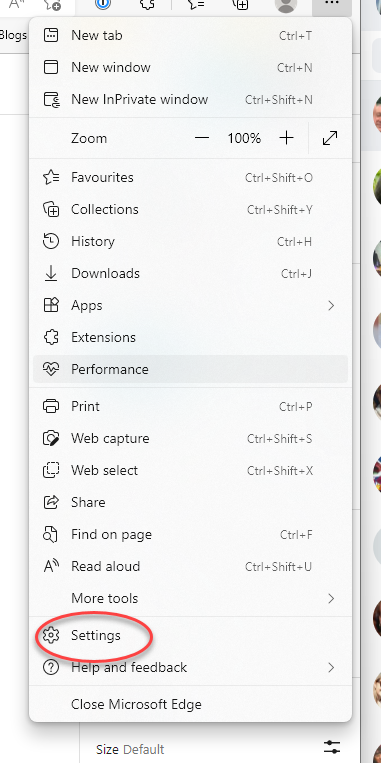
Click the three-dot menu in the top-right corner of Edge.
.png)
Select Settings from the dropdown.
Step 2 — Adjust Tracking Prevention
Go to Privacy, Search and Services and check the Tracking Prevention setting. If it’s set to Strict, change it to Balanced.
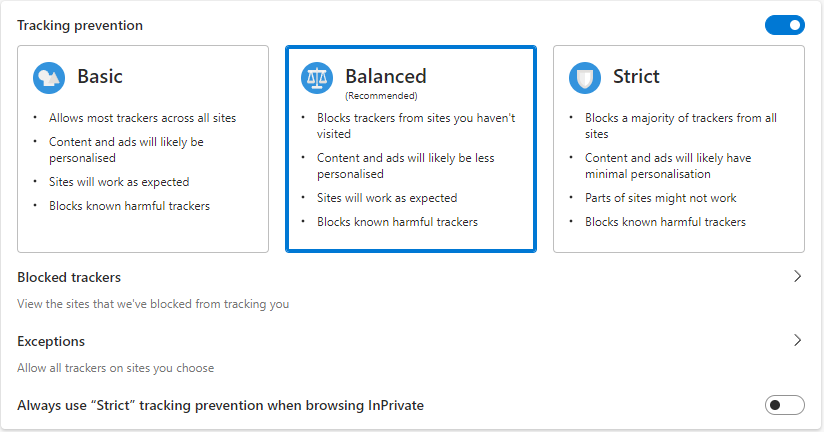
Balanced blocks trackers from sites you haven’t visited while still allowing content to load correctly on most pages. Strict can block elements that legitimate sites depend on, which is what causes the blocking notification to appear.
If that doesn’t fix it
Check your installed extensions. Some ad blockers or privacy extensions can trigger the same blocked-page behaviour. Disable them one at a time to identify the culprit — then either remove it or adjust its settings for the affected site.