Microsoft Teams Stuck on the Loading Screen
Teams spinning on the loading screen indefinitely is almost always caused by cached credentials that have become stale — typically after a password change or a conditional access policy update.

The fix is to clear the stored credentials from Windows Credential Manager and let Teams prompt for fresh ones.
Step 1 — Open Credential Manager
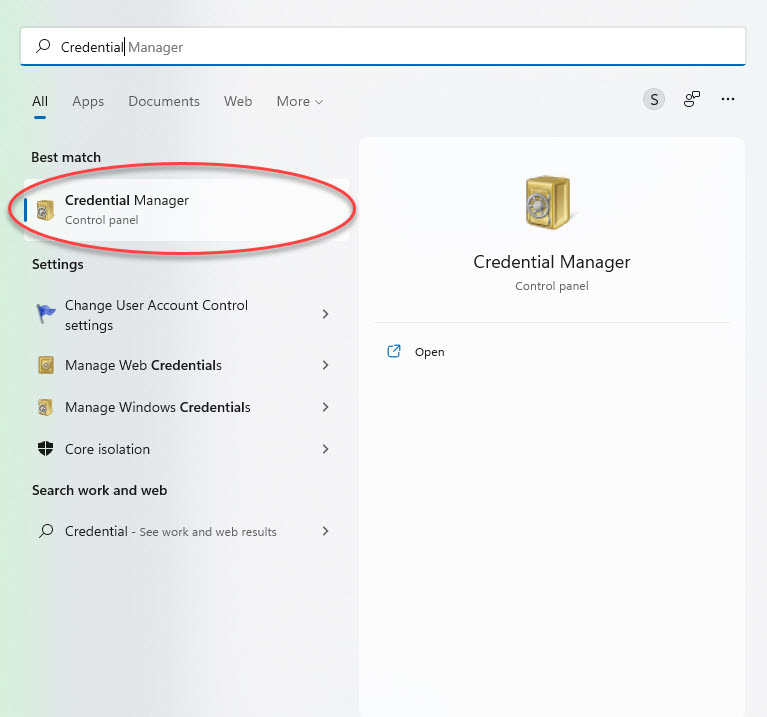
Press the Start button and type cred — Credential Manager will appear at the top of the results.
Step 2 — Go to Windows Credentials
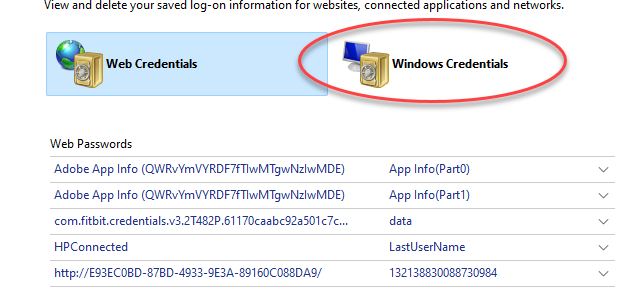
Select Windows Credentials from the two tabs at the top.
Step 3 — Remove the msteams entries
Scroll through the list and look for any entries containing msteams. Expand each one and click Remove.

Once all msteams entries are removed, relaunch Teams. It will prompt you to sign in again and then load normally.