OneDrive for Business Library Won't Sync
When setting up OneDrive for Business sync on Windows 10 I hit an error on the first attempt. Here’s what fixed it.
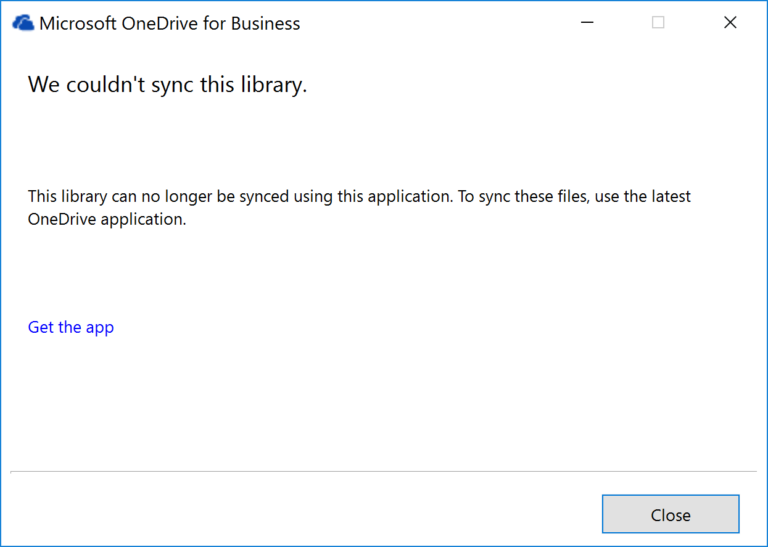
First step — run Office updates
Before anything else, run Office updates. It won’t necessarily fix the sync issue on its own but it’s a good baseline and worth doing regardless.
Open any Office application, go to File → Account and click Update Options.
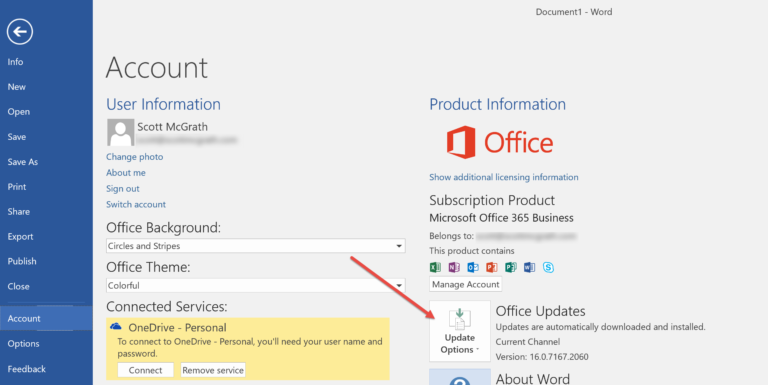
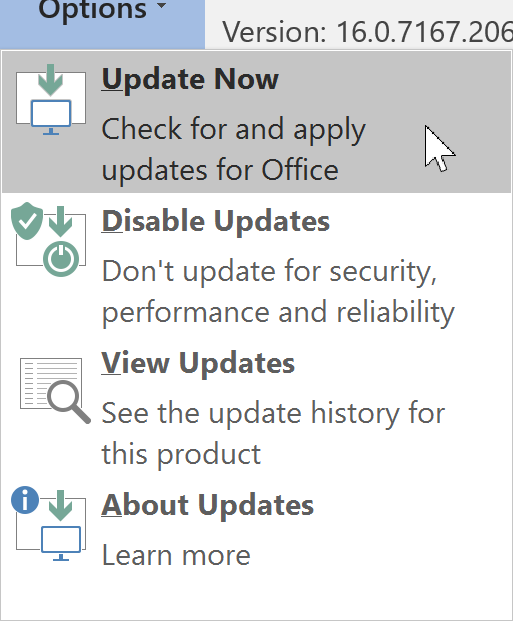
Click Update Now.
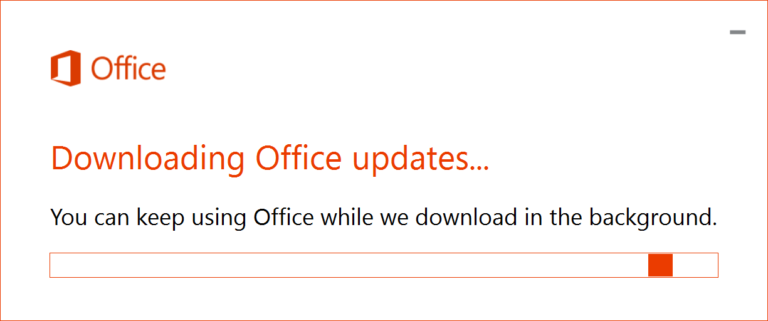
Office will download and apply any available updates.
The actual fix — Next Generation Sync Client
If updates don’t resolve the sync error (they didn’t for me), the solution is to switch to the OneDrive for Business Next Generation Sync Client. At the time Microsoft had two sync clients — the legacy Groove-based one bundled with older Office installations, and the new one built specifically for Windows 10.
Microsoft’s support documentation walks through the transition. Once you install and sign in to the new client, the sync issue goes away.
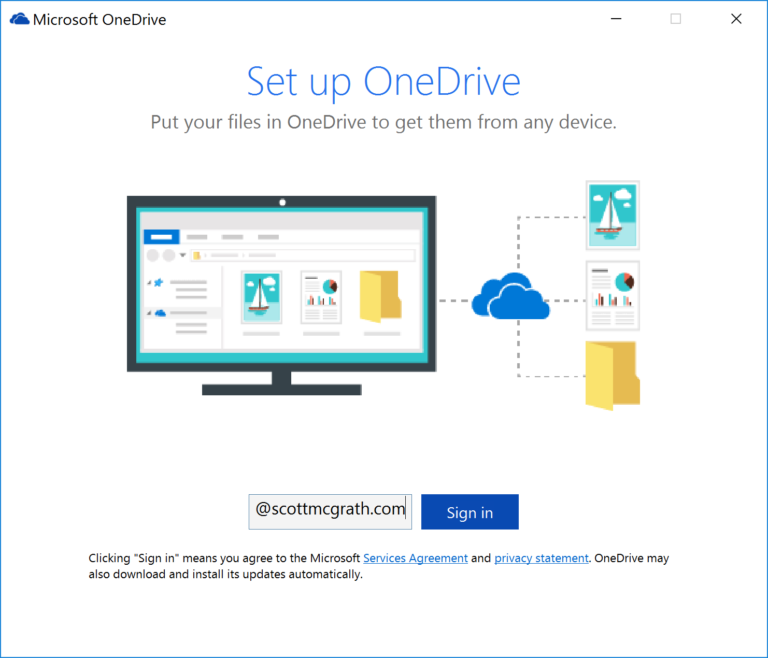
Note: If you’re reading this now, the “Next Generation Sync Client” is simply the OneDrive app that ships with Windows 10 and 11 today — it’s been the default for years. If you’re still hitting sync issues, check that you’re not running the legacy client and that your account is connected through the modern OneDrive app in the system tray.