Installing Azure CLI
Installing the Azure CLI on Windows, macOS and Linux, plus the VS Code extension for command IntelliSense.
The Azure CLI (az) is the command line tool for managing Azure resources. It works the same way across Windows, macOS and Linux, so once it’s installed the commands themselves are identical no matter which machine you’re on.
Current version at the time of writing is 2.89.0. Run az version after installing to confirm what you’ve got, and az upgrade any time to update in place.
Windows
The easiest option is WinGet, which ships with Windows 11 and most current Windows 10 installs. Run this from PowerShell or Command Prompt:
winget install --exact --id Microsoft.AzureCLIIf you don’t have WinGet, download the 64-bit MSI installer instead and run it directly.
Either way, close and reopen your terminal once the install finishes. The az command won’t be on your PATH until you do.
macOS
Installed via Homebrew:
brew update && brew install azure-cliIf you don’t already have Homebrew, install that first.
Linux
For Debian and Ubuntu, there’s a one-line install script maintained by the Azure CLI team:
curl -fsSL 'https://azurecliprod.blob.core.windows.net/$root/deb_install.sh' | sudo bashWorth opening the script in a browser first if you want to see what it’s doing before piping it into sudo bash.
For Fedora, RHEL or CentOS:
sudo rpm --import https://packages.microsoft.com/keys/microsoft.asc
sudo dnf install -y https://packages.microsoft.com/config/rhel/9.0/packages-microsoft-prod.rpm
sudo dnf install azure-cli
Other distributions (openSUSE, Azure Linux and so on) each have their own package manager steps, covered in Microsoft’s Linux install docs.
Verify it’s working
Once installed, on any platform:
az version
az login
az login opens a browser window to sign you into Azure. Once you’re signed in, az account show confirms which subscription you’re pointed at.
Installing the VS Code extension
The Azure CLI Tools extension adds IntelliSense, inline docs and syntax highlighting for .azcli files, so you get command and parameter completion as you type instead of hopping to the docs every time.
Install it from the Extensions view in VS Code (Ctrl+Shift+X / Cmd+Shift+X), search for “Azure CLI Tools”, and install the one published by Microsoft. Or from the command line, if you’ve got the code CLI set up:
code --install-extension ms-vscode.azurecli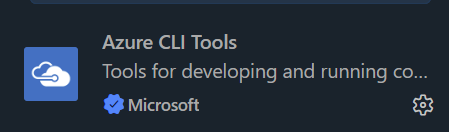
Official docs
Microsoft’s own install guide covers every platform and edge case in more detail than I have here: Install the Azure CLI.